How to install and use the SteamGridDB plugin on Steam Deck
Personally, I didn't like installing special plugins on the Steam Deck, just because... I don't know :). Then I noticed that there is a plugin for 'SteamGridDB'. What is SteamGridDB?
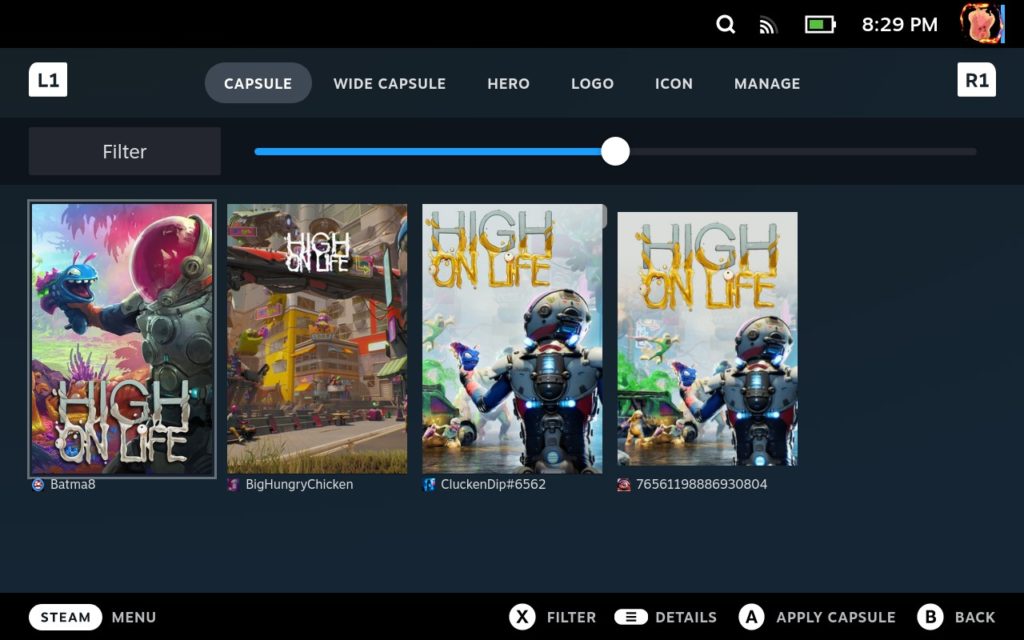
Well, that's a website which has a LOT of artwork for a lot of games for the Steam client. If you have Steam games, that's done automatically, but if you have non-Steam games, you won't have the artwork (by default). Changing those images — one for the wide image, one for the hero, one for the logo, etc. — is just annoying & time-consuming.
The SteamGridDB plugin for Decky Loader helps a lot, and you don't need to use desktop mode for changing the artwork (even animated artwork) once the plugin has been installed.
How to install Decky Loader
- Press the
 button and open the Settings menu.
 - Navigate to the System menu and scroll to the System Settings. Toggle "Enable Developer Mode" so it is enabled.
- Navigate to the Developer menu and scroll to Miscellaneous. Toggle "CEF Remote Debugging" so it is enabled.
- Select "Restart Now" to apply your changes.
- Press the button and open the Power menu.
- Select "Switch to Desktop".
- Open the Konsole app and enter the command
passwd. You can skip this step if you have already created a sudo password using this command. (YouTube Guide) - You will be prompted to create a password. Your text will not be visible. After you press enter, you will need to type your password again to confirm.
- Paste the following command into the Konsole app.

curl -L https://github.com/SteamDeckHomebrew/decky-loader/raw/main/dist/install_release.sh | shInstall SteamGridDB plugin
- In game mode, open the quick access menu:

- Go to Decky Loader.
- Open plugins.
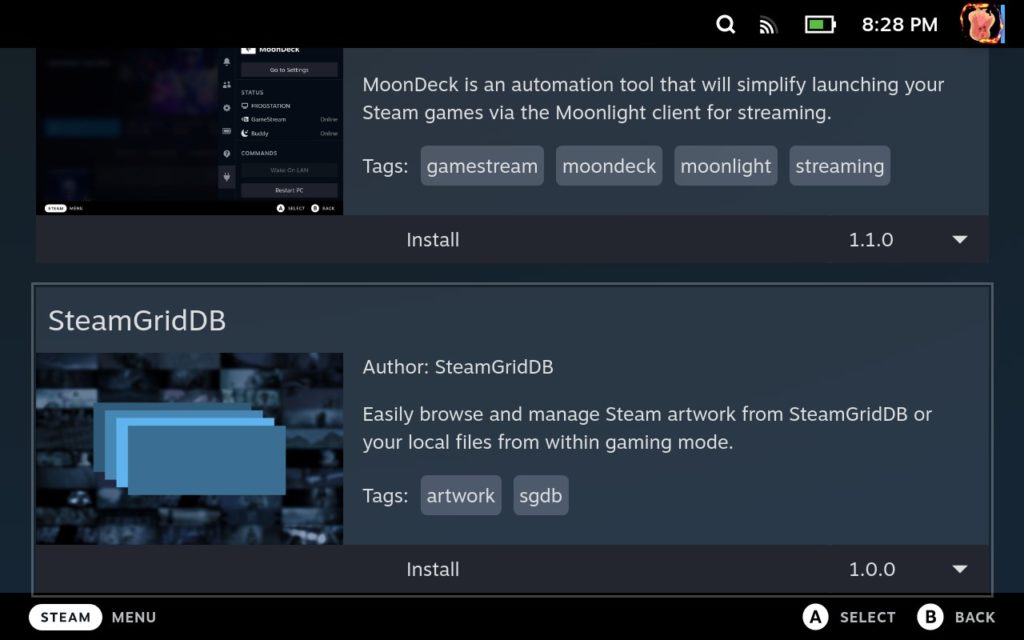
- Scroll until you find "SteamGridDB", click install, and that's it. I advise you to restart the Steam Deck.
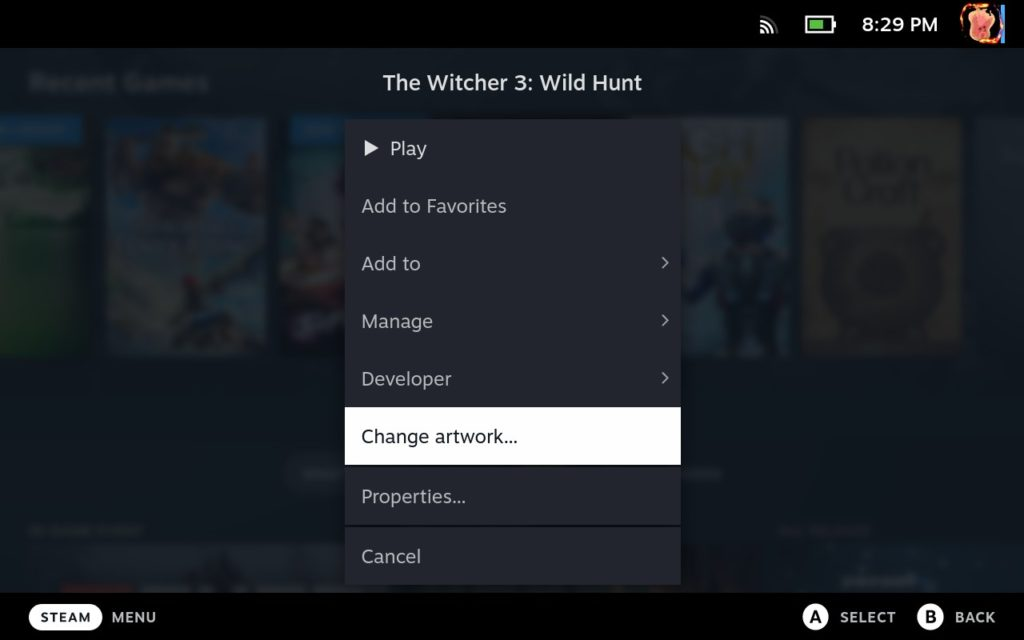
If you now open game mode on the Steam Deck, you can find the option "Change Artwork" for each game.